Set the date
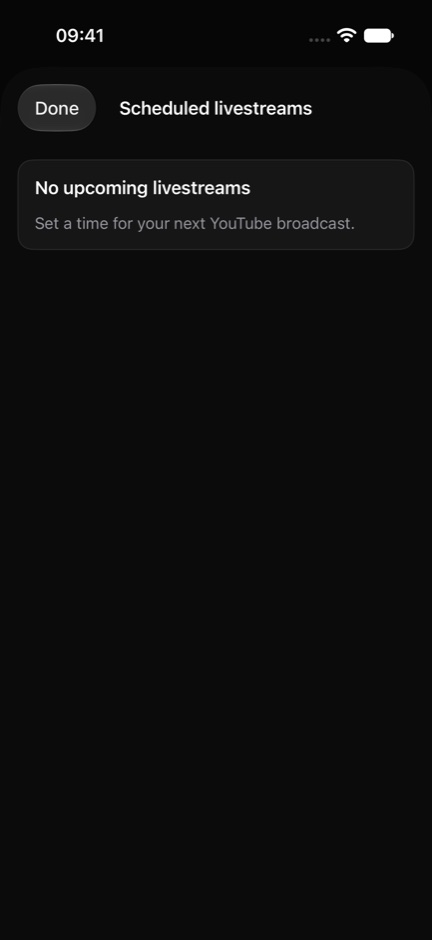
Connect YouTube, choose a start time and set visibility. Add a thumbnail and preview its 16:9 crop before scheduling.
My Live Stream for iOS
Set your broadcast time, send your client the YouTube viewer link, and run the livestream from the same iPhone.
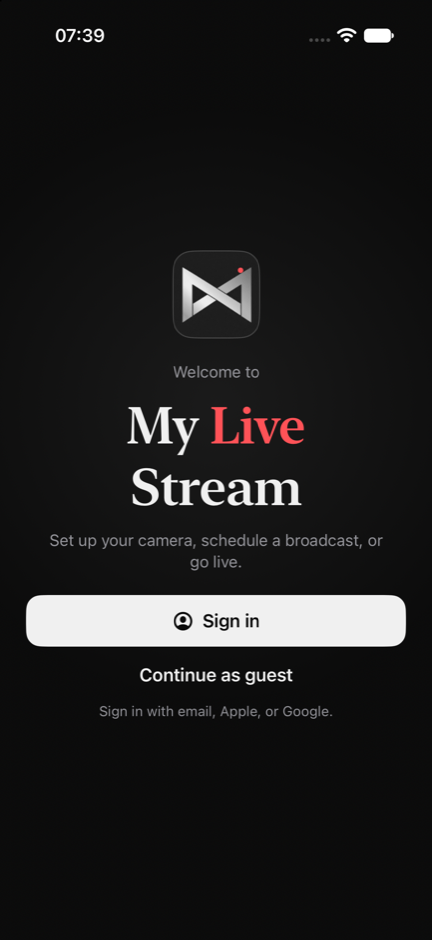
Schedule a sample event, share its preview, and rehearse in the studio. No account needed. The demo creates no real broadcasts.
Your sample event will appear here after you schedule it.
Shared sample event
Scheduled livestreams
Connect YouTube, choose a start time and set visibility. Add a thumbnail and preview its 16:9 crop before scheduling.
Open your scheduled event to copy the viewer link. An unlisted broadcast is available to anyone with the link.
Enter Studio to check framing, microphone levels, battery and storage. Review the broadcast before you start.
Plan the broadcast, connect YouTube, and check camera and audio before the event. Open any screenshot for a closer look.
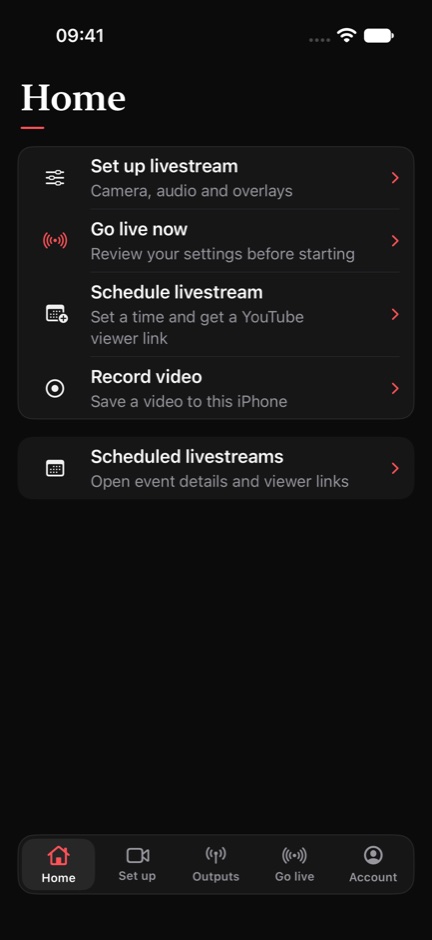
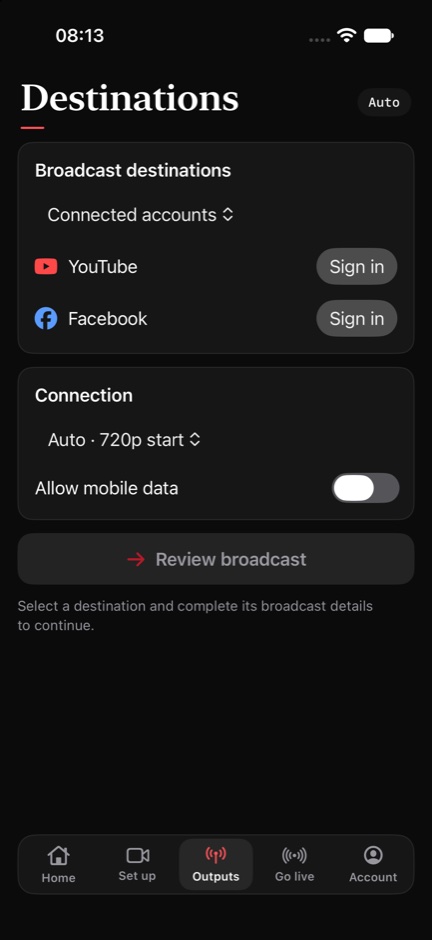
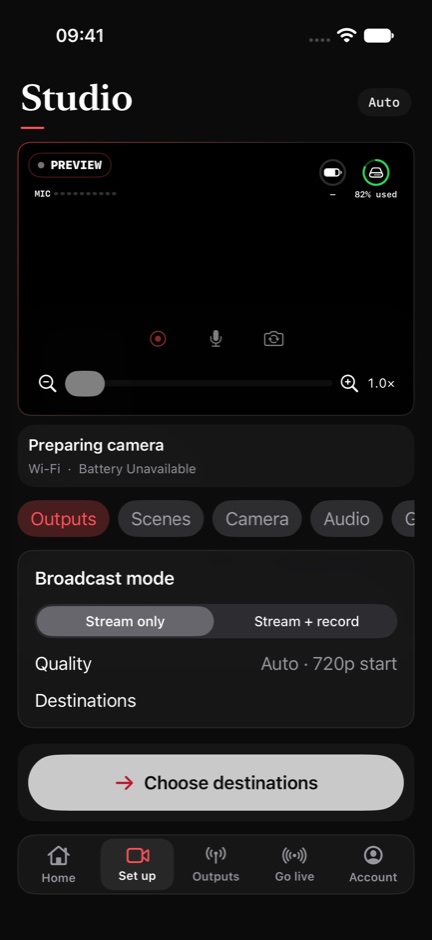
For a wedding livestream, schedule the ceremony on YouTube and send the viewer link to your client in advance. On the day, open the scheduled event, enter the studio, and check your camera and audio before you start.
See the workflow